
Importing memberships from an external file can only be completed by your Club Development Officer (CDO) or Tennis Development Officer (TDO), so you’ll need to engage them to carry out the actual import.
Club admin steps:
Step 1:
Create each of your membership packages in Clubspark. (Refer to this support guide for instructions.)
Step 2:
Prepare a separate CSV file for each membership package (e.g. Adult, Family, Junior), and include all members you want to import.
For adult memberships, your CSV must include the following fields:
- Contact ID (a unique number for each member, e.g. 1–100)
- First Name
- Last Name
- Date of Birth
- Email Address
- Start Date
- Expiry Date
- Package Cost (e.g. $150)
- Amount Paid (e.g. $150 if paid, $0 if unpaid)
- Postcode
You can also include additional fields such as gender, address, phone number, or emergency contact details, but these are optional.
For junior packages, all the above fields are required with some extra information. Junior contacts don’t require an email address, but the parent/guardian must be added as their own contact. In addition, Primary Contact ID is required to link the child account to the parent/guardian.
For example:
| Contact ID | Primary Contact ID | First Name | Last Name | Email Address |
| 1 | 2 | Junior A | Contact A | |
| 2 | 2 | Parent A | Contact A | [email protected] |
| 3 | 4 | Junior B | Contact B | |
| 4 | 4 | Parent B | Contact B | [email protected] |
Family Membership Packages
Family packages require the same fields as adult membership packages, with the addition of Primary Contact ID. This works the same way as for junior packages but is used to link each family member to the primary contact for the family membership.
Once your files are ready, send them through to your CDO/TDO, who will complete the import for you.
Club Development Officer / Tennis Development Officer Instructions:
Step 1: Head to the Membership module on the left-hand side in your Admin area.
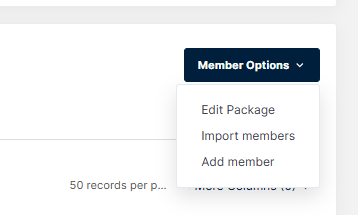
Step 2: From within the package, click on the ‘Import members‘ button.
Step 3: Download the import template as pictured below and enter all member details into the template. Once you have added in all the details to the file, select ‘Browse‘ to choose the file you wish to upload, and then click the blue ‘Import’ button.
Step 4: The file should be successfully imported, if the spreadsheet contains any errors you will receive a list of each error message containing what needs to be fixed or what is causing the error. Head back to the membership package where you should find your members now showing.
Step 5: With the members showing in the new package, you will be able to send emails to all adult members. Make sure you have selected ‘Main Contacts’ to send out payment requests and invites.