
How to Import from an External File
Step 1: Head to the Membership module on the left hand side in your Admin area.
Step 2: You will need to create your new membership packages if you haven’t already done so. From within the package, click on the ‘Import members‘ button.
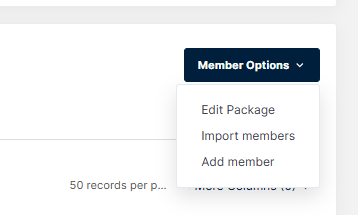
Step 3: Next screen, you will find the import from an external file option, as shown below. You will have the option to download the import template. Once you have added in all the details to the file, select ‘Browse‘ to choose the file you wish to upload, and then click the blue ‘Import’ button.
Step 4: The the file should be successfully imported, if the spreadsheet contains any errors, due to formatting, you will receive a list of each error message. The error messages should also contain what needs to be fixed or what is causing the error at least. Head back to the membership package where you should find your members now showing.
Please note: For Date of purchase memberships, the start-date inputted on the spreadsheet template will now be detected (previously the current day / imported date was the ‘start-date’), we are pleased to have updated this.
Step 5: With the members showing in the new package, you will be able to send emails to all adult members. Make sure you have selected ‘Main Contacts’ to send out payment requests and invites.