We’ve made some improvements to the Tennis Profile and Tournaments websites to enhance your experience. Here’s what’s new:
Integrated Profile Management for Tournaments
Managing your tennis details is now easier than ever. We have integrated the Tennis Identity profile management directly into the Tournaments website.
You can now access the “Update Profile Details” option directly from the Manage menu on the Tournaments website.a
This change aligns the Tournaments website with Match Centre, allowing you to view and edit your profile and settings in one central experience.
To make things clearer, we’ve renamed “My Profile” to “My Dashboard” and “Profile Settings” to “App Notifications.”
Profile Deactivation
We have updated and improved the account deactivation process to make it more transparent and secure for our customers.
Need help?
If you have any questions or need help, check out our Support Centre for more information and resources. Alternatively, please don’t hesitate to contact our friendly team on 1800 PLAY TENNIS (1800 752 983) or email [email protected].
BCS is making this change to consolidate and simplify their hosting environment, and to enable an efficient service operation to support their lower cost pricing model.
Action required of you:
BCS will maintain a redirect from your present site to the new website for a period of time. In preparation for this change, please bookmark the new website address so you can still access the site once the redirect has been removed.
We’ve made some improvements to the Tennis Profile and Competitive Play websites to enhance the experience. Here’s what’s new:
Sign-in improvements for Google and social login users
We’ve resolved an issue where some users who originally registered using Social Logins (Google, Apple & Facebook) were unable to sign in later using their email and password. This could occur if the browser was closed before completing the Tennis Profile setup, or if the account wasn’t fully linked.
Improvements to linked child profiles
We’ve made behind-the-scenes improvements to ensure that linked family profiles, such as a parent account connected to a child’s profile, stay in sync across all Competitive Play platforms without delay.
What’s coming next
We’ll continue to focus on improving the experience; allowing direct access to profile management from the Tournaments site and other minor enhancements.
If you have any questions or need help, check out our Support Centre for more information and resources. Alternatively, please don’t hesitate to contact our friendly team on 1800 PLAY TENNIS (1800 752 983) or email [email protected].
We’ve made some improvements to the Tennis Profile and Competitive Play websites to help streamline the experience. Here’s what’s new:
Update your profile directly from League Manager
Previously, League Manager users had to jump between different sites to keep their profile details up to date. We’ve now added an “Update Profile” option directly within the League Manager menu. This allows you to manage your personal details and profile settings seamlessly.
We’ve also renamed the League Manager “Profile Settings” menu to “App Notifications” to make it clearer where to go to manage your alerts for League Manager.
A smoother experience when linking child accounts
We’ve refined the process for parents and guardians linking a child’s profile to their account. To make the process clearer and more reliable, we have:
Added loading indicators so you know your request is being processed.
Updated the wording to be clearer and more consistent throughout the request.
Improved the “Link Request” flow, including a new “Submit Request” button.
Fixed unlinking behaviour, ensuring that if a profile is unlinked, it is removed from your Family tab immediately.
What’s coming next
We’ll continue to focus on improving the experience, such as but not limited to; allowing direct access to profile management from the Tournaments site, a fix for Google sign-in users and other minor enhancements.
If you have any questions or need help, check out our Support Centre for more information and resources. Alternatively, please don’t hesitate to contact our friendly team on 1800 PLAY TENNIS (1800 752 983) or email [email protected].
We’ve made some improvements to the Tennis Profile experience to make it easier (and more reliable) for parents/guardians managing child profiles. Here’s what’s new this week:
Improved “Promote Child to Adult” account experience
We’ve made a series of fixes to the “Promote Child to Adult” account process to help it work more consistently and avoid confusing outcomes. This includes improved guidance and clearer messaging when something goes wrong, and safeguards to help prevent duplicate account creation.
Smoother Child Profile saving & loading
We’ve also improved the way child profile details load and save, including better loading indicators and preventing actions until the page is fully ready. This helps reduce cases where older information briefly appears after saving.
Downstream updates flowing through more consistently
When a child profile is promoted, we’ve improved the reliability of updates flowing through to other areas like Match Centre and Tournaments, so changes are reflected consistently.
What’s coming next
We’ll continue to focus on improving the experience, such as but not limited to; allowing direct access to profile management from the Tournaments site, a fix for Google sign-in users and other minor enhancements.
If you have any questions or need help, check out our Support Centre for more information and resources. Alternatively, please don’t hesitate to contact our friendly team on 1800 PLAY TENNIS (1800 752 983) or email [email protected].
We’ve made some improvements to the Tennis Profile and Competitive Play websites to help streamline the experience. Here’s what’s new this week:
Clearer Error Messages on the Tournaments Website
We’ve updated our error messages across the Tournaments website to be more specific and actionable. If something goes wrong with your sign-in or profile validation, you’ll now see exactly what needs fixing, helping you resolve problems easier and reducing the need to contact support.
Profile Switching Guidance for Accounts with linked Profiles
We’ve added new guidance and prompts on both Match Centre and the Tournaments website to help parents and guardians switch between linked Child profiles. These updates make it easier to ensure you’re acting as the correct profile when registering or managing details.
Consistent Profile Details Across All Platforms
Your profile details are now kept in sync across Tournaments, League Manager, and Match Centre. This means you’ll see the same, up-to-date information no matter which platform you’re using, helping to avoid confusion and eligibility issues.
What’s coming next
Looking ahead, we will be looking at further improvements such as, but not limited to; allowing direct access to profile management from the Tournaments site, further improvements to account switching, a fix for Google sign-in users and other minor enhancements.
If you have any questions or need help, check out our Support Centre for more information and resources. Alternatively, please don’t hesitate to contact our friendly team on 1800 PLAY TENNIS (1800 752 983) or email [email protected].
We’ve rolled out a range of improvements to Tennis Identity to make your experience smoother, more reliable, and easier to manage.
Here’s an overview of what’s been updated today:
UTR Activation – Clearer Guidance and Fewer Loops
Players activating their UTR Rating will now see clear error messages and next steps if activation fails, instead of getting stuck in a loop. This means you’ll know exactly what to do if something goes wrong, and make connecting your UTR Rating more reliable so you can complete your Competitive Player Profile and get on court.
Improved Error Messages for Sign-In and Profile Issues
We’ve updated our error messages across Tennis Profile and League Manager/Match Centre to be more specific and actionable. If something goes wrong with your sign-in or profile validation, you’ll now see exactly what needs fixing, helping you resolve problems easier and reducing the need to contact support.
Tennis Profile pages – Incremental Improvements
We’ve made a series of small but important updates to the Tennis Profile portal, including clearer button labels, improved tips, and better mobile rendering. These changes make it easier to navigate and reduce the risk of errors managing your profile.
Better Guidance for Linking Child Profiles
Parents and guardians will now see improved instructions, contextual help, and updated support documentation. This helps prevent duplicate accounts and makes onboarding smoother for linking Child profiles to your account.
Missing Match History and Ratings
We’ve delivered improvements to how match results and ratings are processed between Match Centre, Tournaments and UTR Sports. This means your match data and ratings are more accurate, improved processing of results and reducing support queries.
Coming next week
Looking ahead to next week, we’ll be rolling out further improvements including clearer error handling on the Tournaments site, better support for Google social sign-in users, updated information to help with account switching and other minor enhancements.
If you have any questions or need help, check out our Support Centre for more information and resources. Alternatively, please don’t hesitate to contact our friendly team on 1800 PLAY TENNIS (1800 752 983) or email [email protected].
If you’ve linked your child’s account to your parent or guardian profile, you may notice that you can’t enter competitions or complete certain actions on their behalf. This happens because you need to be logged in as your child, not as yourself, to access these features.
Follow the steps below to switch to your child’s profile.
Steps
1
Sign out of your parent account – From Match Centre or Tournaments, click Manage> Sign Out
2
Return to the login page – You will be taken back to the main login screen
3
Sign in using your Tennis login details – Enter your usual Tennis login credentials – If your child’s Tennis ID isn’t linked yet, refer to the support article
4
Select your child’s profile – After logging in, you’ll be asked to choose a profile (e.g. you or your child) – Select your child’s profile to continue
5
Complete actions as your child – You can now enter competitions or tournaments, update details, and complete other actions on their behalf
Switching back to your profile
When you’re finished:
Sign out again
Log back in to your account
Select your own profile to manage your account
Why this matters
When you’re logged in as a parent, only your details are visible to competition systems.
Logging in as your child ensures:
Their profile appears in competition searches
Administrators can view their details
They can be entered into tournaments correctly
If you stay logged in as a parent, your child’s profile may not appear or be selectable.
UPDATE – If you are affected by this issue, please reset your modem using the system reset key, or turn off power to the system enclosure until the keypad(s) completely switch off (i.e. it doesn’t beep or light up).
If you’re still experiencing issues, please contact Tennis Australia Customer Support.
Please note it may take a few minutes for the booking data to download and for PIN access to begin working again.
There is currently a VAS (BAC) issue where booking PINs may not be providing access to the gate. This appears to have started on Thursday 5th of March and is limited to venues using a specific SIM connection.
The issue has been escalated with Complete Security Solutions (CSS), who have also raised it with their service provider for urgent investigation.
If you are affected by this issue, we recommend resetting the modem using the reset key on the system enclosure to see whether this resolves the problem. There is a small insert on the bottom of the system enclosure where the reset key can be inserted. The mechanism is spring-loaded, so the key will need to be twisted and held for approximately 5 seconds, which will power the router off and back on.
Alternatively, you can turn off the power to the enclosure for 3–4 hours. Once the keypads are completely off, the power can then be turned back on. This will complete a full system reset.
However, please note that this is not guaranteed to resolve the issue.
Note: the public/private site PIN should still give access to the gate if required.
We will provide a further update as soon as we receive more information
Importing memberships from an external file can only be completed by your Club Development Officer (CDO) or Tennis Development Officer (TDO), so you’ll need to engage them to carry out the actual import.
Club admin steps:
Step 1: Create each of your membership packages in Clubspark. (Refer to this support guide for instructions.)
Step 2: Prepare a separate CSV file for each membership package (e.g. Adult, Family, Junior), and include all members you want to import.
For adult memberships, your CSV must include the following fields:
Contact ID (a unique number for each member, e.g. 1–100)
First Name
Last Name
Date of Birth
Email Address
Start Date
Expiry Date
Package Cost (e.g. $150)
Amount Paid (e.g. $150 if paid, $0 if unpaid)
Postcode
You can also include additional fields such as gender, address, phone number, or emergency contact details, but these are optional.
For junior packages, all the above fields are required with some extra information. Junior contacts don’t require an email address, but the parent/guardian mustbe added as their own contact. In addition, Primary Contact ID is required to link the child account to the parent/guardian.
Family packages require the same fields as adult membership packages, with the addition of Primary Contact ID. This works the same way as for junior packages but is used to link each family member to the primary contact for the family membership.
Once your files are ready, send them through to your CDO/TDO, who will complete the import for you.
Club Development Officer / Tennis Development Officer Instructions:
Step 1: Head to the Membership module on the left-hand side in your Admin area.
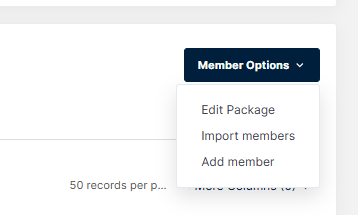
Step 2: From within the package, click on the ‘Import members‘ button.
Step 3: Download the import template as pictured below and enter all member details into the template. Once you have added in all the details to the file, select ‘Browse‘ to choose the file you wish to upload, and then click the blue ‘Import’ button.
Step 4: The file should be successfully imported, if the spreadsheet contains any errors you will receive a list of each error message containing what needs to be fixed or what is causing the error. Head back to the membership package where you should find your members now showing.
Step 5: With the members showing in the new package, you will be able to send emails to all adult members. Make sure you have selected ‘Main Contacts’ to send out payment requests and invites.