
Parents can easily link their child to their account in order to manage their memberships, hire courts and communicate with the club on behalf of their children.
By doing so, you’ll only need one login for the entire family.
1.
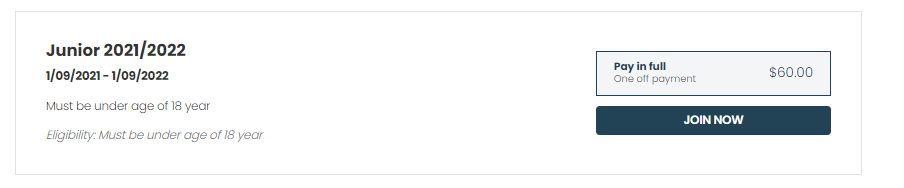
To do this, go to your club’s website where you’ve previously registered and go to the membership page.
Select the relevant Junior membership you want to purchase for your child and click JOIN NOW.
2.
If you haven’t created an account, you’ll be asked to create one first.
Note:
If purchasing on behalf of your child, you will first need to create an account for yourself to manage your child’s account.
In the future, the junior can use your registered login to manage their account.
3.
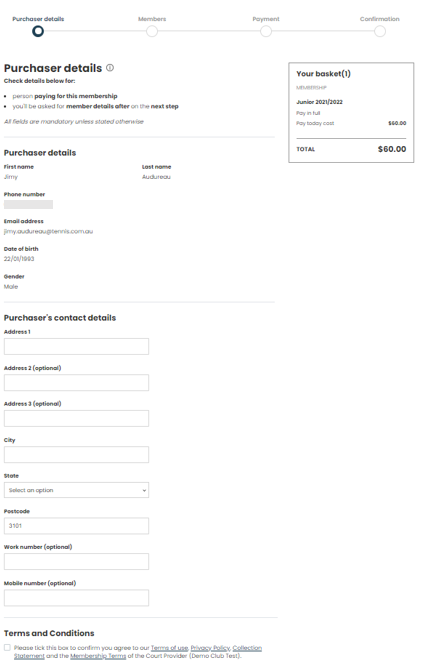
If you have an account, you’ll be asked to fill in and double check the Purchaser details first (your details), tick the T&Cs box and click the CONTINUE TO MEMBER DETAILS button.
4.
In the next step you’ll be able to add the junior’s details.
To do this, simply click “+ Add a new member” and fill in your child’s details.
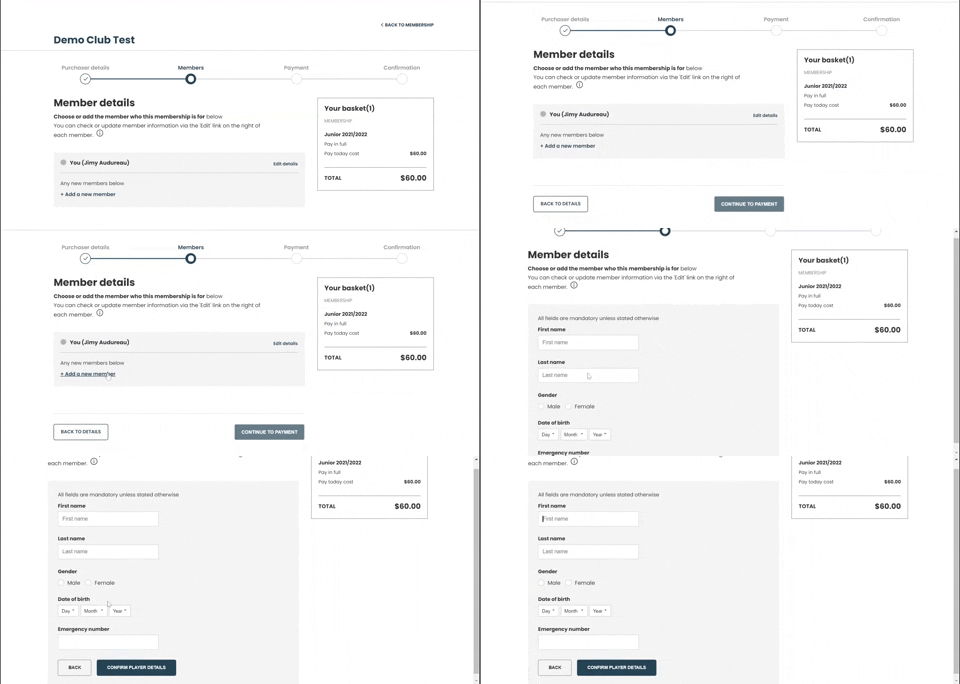
Once you’re done, click CONFIRM PLAYER DETAILS.
Note:
If you need to purchase multiple junior membership for different children, follow the same process as many times as needed.
5.
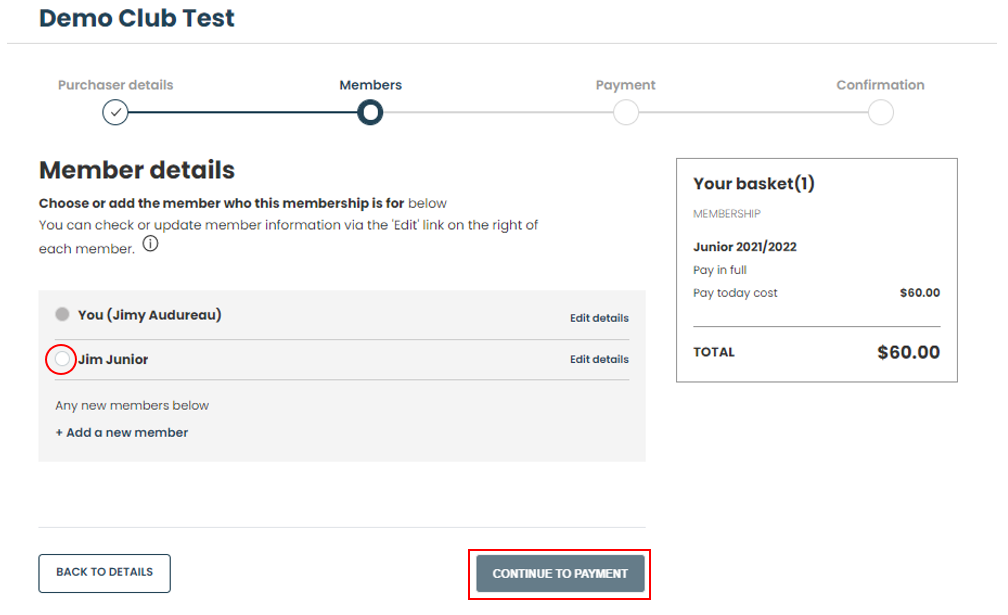
You’ll be redirected to the member details page.
Here, tick the box of the new junior you’re purchasing the membership for and click CONTINUE TO PAYMENT.
6.
Review your details and choose your payment method to purchase the membership.
7.
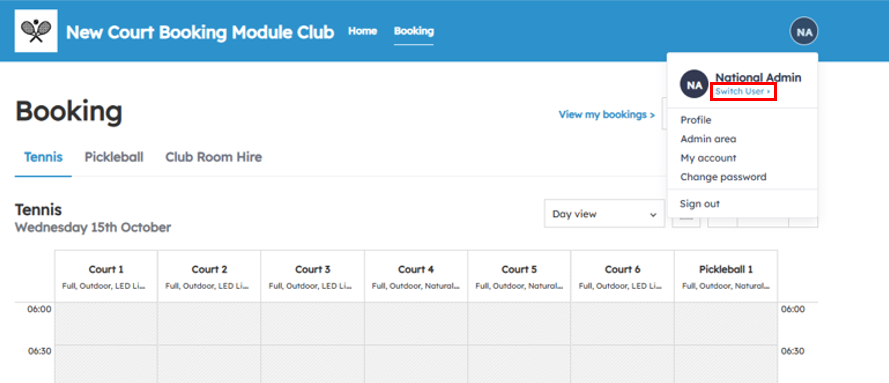
After purchasing a membership on behalf of a family member, you will be able to access their account from the top bar of the webpage. Click on the logo (your initials) in the top right and an option will appear in the drown menu for you to click Switch User >
An overlay will appear for you to then click your child’s account;
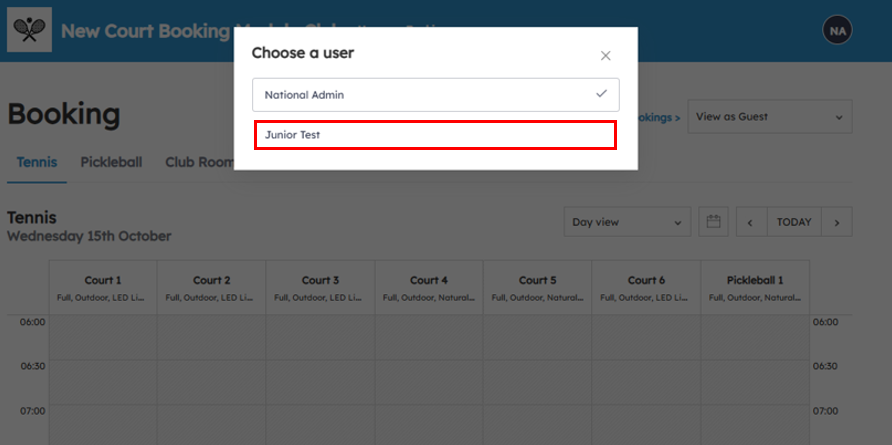
This will reload the page, and from here you’ll be able to manage your child’s court booking and memberships
Note:
Do not forget the email and password you’ve used, so that everyone linked to your account can easily access their account in the future!